

When Starlink Roam data runs out early, the usual cause is that your phones, laptops and TVs treat Starlink Wi-Fi like unlimited home internet. Streaming on Auto, high-definition (HD) video calls and automatic updates are the usual drains. Mark your Starlink network as low-data or metered on every device, then lower streaming quality.
Last updated: September 25, 2026
As of September 2026, Roam 100GB starts at $55 a month, and Starlink describes 100GB as about one week of typical use, per Starlink’s Roam page. This guide covers where Roam data goes and which settings slow the drain. If you are still choosing a connection, start with our RV internet guide comparing Starlink and 5G.
At a glance
- Must-Know: After 100GB or 300GB, Roam drops to low-speed data until your billing cycle resets.
- Trip Killers: Streaming on Auto and HD video calls. Netflix HD uses up to 3 GB per hour, per Netflix Help. A group Zoom call at 720p uses about 2 GB per hour, calculated from Zoom’s bandwidth figures.
- Best For: Roam 100GB and 300GB users whose phones, laptops and TVs connect through Starlink Wi-Fi.
- Confirm Before You Go: Mark your Starlink Wi-Fi as Low Data Mode or metered on every device, and check current plan prices on Starlink’s Roam page.
How Starlink Roam Data Caps Work in 2026
After 100GB or 300GB, Starlink Roam drops to low-speed data until your cycle resets. The capped plans then give you unlimited low-speed data for the rest of the billing cycle, per Starlink’s Service Plan Descriptions. Starlink says Roam is designed for low-demand, land-based use such as travel and camping. These rules cover US Roam 100GB and Roam 300GB plans as of September 2026. Roam Unlimited has no data cap.
Starlink’s Service Plan Descriptions state, “Low-speed data is not suitable for bandwidth-intensive applications like streaming, video calls, gaming”.
- Roam 100GB starts at $55 a month as of September 2026, per Starlink’s Roam page.
- Roam 300GB costs $80 a month, and Roam Unlimited costs $175 a month, on the same page.
- Starlink describes 100GB as about one week of typical use.
- Unused 100GB or 300GB data does not roll over to the next cycle, per the plan terms.
- Capped plans work in your home country. Starlink’s Roam page lists the US and Canada for US customers.
- Starlink no longer sells per-GB data on Roam plans, except for Ocean Mode, which is available with Roam Unlimited, per a Starlink support article.
- Roam 50GB is now Roam 100GB, per a Starlink support article.
Speeds on every Roam plan are not guaranteed and slow down during congestion, per Starlink. Starlink may also reduce speeds for users whose bandwidth consistently exceeds a typical Roam user, per the Service Plan Descriptions. Those terms apply to Roam Unlimited too. Check your data usage in the Starlink app to see where your cycle stands.
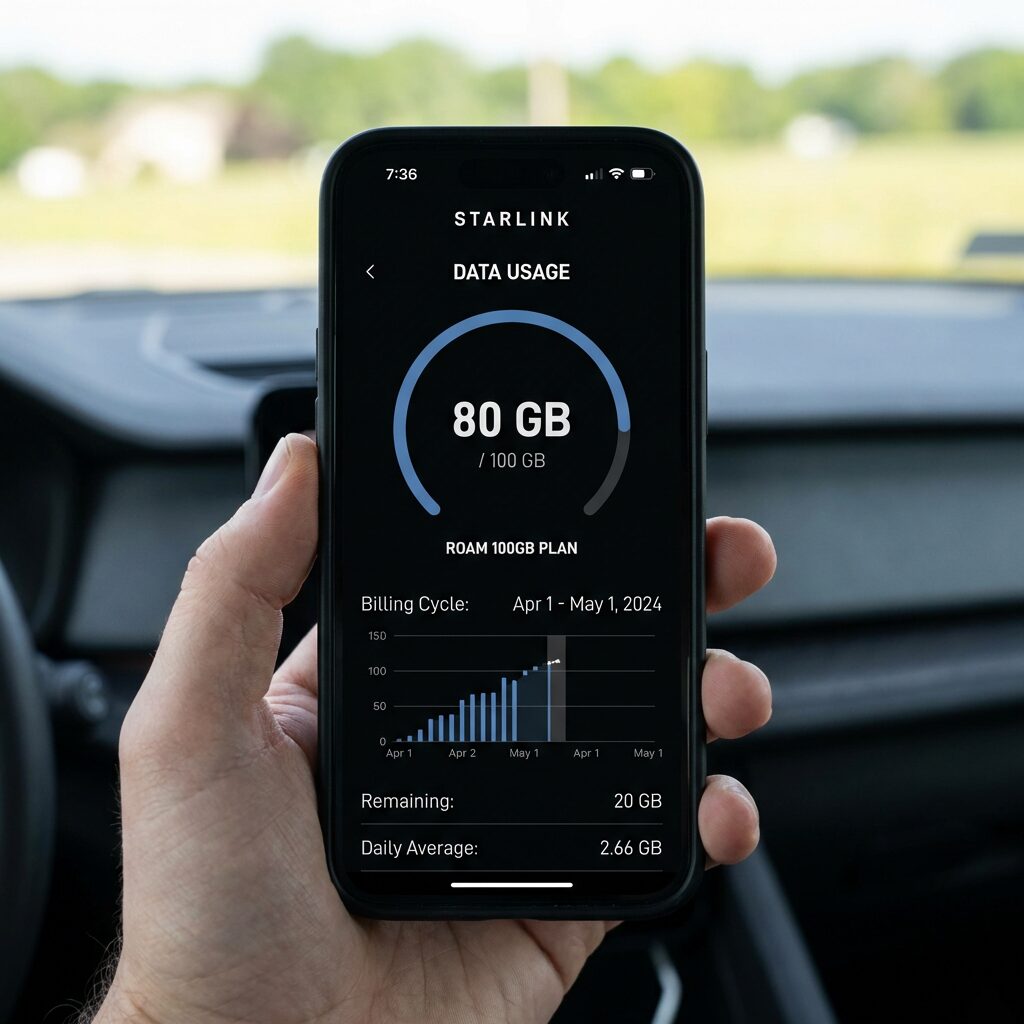
The 5 Data Drains Behind Most Roam Overages
Your devices treat Starlink Wi-Fi like unlimited home internet unless you tell them otherwise. Many phone and app data limits apply only to mobile data, so backups, updates and high-quality video run on Wi-Fi without a limit. Google Photos, for example, applies its backup data limits to mobile data only, per Google Photos Help. The five drains below apply to any Roam 100GB or 300GB plan, on any device connected to your Starlink Wi-Fi.
Drain 1: Streaming on Auto or high quality
Netflix’s Auto setting picks the highest quality your connection allows, per Netflix Help. High quality in HD uses up to 3 GB per hour, and Ultra HD uses up to 7 GB per hour. Netflix publishes these figures per device for web playback. YouTube offers a Data saver option but does not publish per-hour data figures.
Drain 2: Video calls
A one-on-one Zoom call at 720p uses about 1.1 GB per hour. That figure is calculated from Zoom’s published bandwidth for one device, and real use is often lower. A group Zoom call at 720p uses about 2 GB per hour by the same math. Microsoft Teams and Google Meet figures, calculated the same way, appear in the table in the streaming section.
Drain 3: System, app and console updates
iPhones, Macs, Windows PCs and game consoles can download system and app updates automatically. A PlayStation 5 (PS5) can also download updates in rest mode when “stay connected to the internet” is on in Power Saving, per PlayStation Support. Starlink says your router may use about 1 to 5 GB a month on its own for software updates and health monitoring, and that traffic counts toward your monthly data, per Starlink Support. Updates to your phones, laptops and consoles count too, because they are ordinary downloads over your connection.
Drain 4: Photo and file backup
Apple Support lists what Low Data Mode changes, including that it “Pauses updates for services such as iCloud Photos”. Google Photos has no Wi-Fi data limit setting, but you can turn backup off, per Google Photos Help. OneDrive pauses sync on its own when your PC is on a metered network, per Microsoft Support. You can also pause OneDrive by hand for 2, 8 or 24 hours.
Drain 5: Background app activity
Apps can sync and refresh content in the background while your phone sits unused. On iPhone, Low Data Mode turns off Background App Refresh, per Apple Support. No vendor publishes a verified figure for background use, so watch your totals in the Starlink app.
One more habit to watch. A speed test measures speed by moving data, so run one when troubleshooting, not as a routine.
Mark Your Starlink Wi-Fi as Low-Data or Metered on Every Device
Phones and laptops only save data on Wi-Fi when you mark that network as metered. A metered or Low Data Mode flag tells the operating system to hold back updates, backups and background activity. Each setting applies per network and per device, and menu names vary by operating system version and phone maker. According to Microsoft Support, on a metered connection “Windows Update will only download priority updates.”
Starlink also publishes a Data Usage Best Practices help article. Repeat the steps below on every phone, tablet and computer that joins your Starlink Wi-Fi.
iPhone and iPad
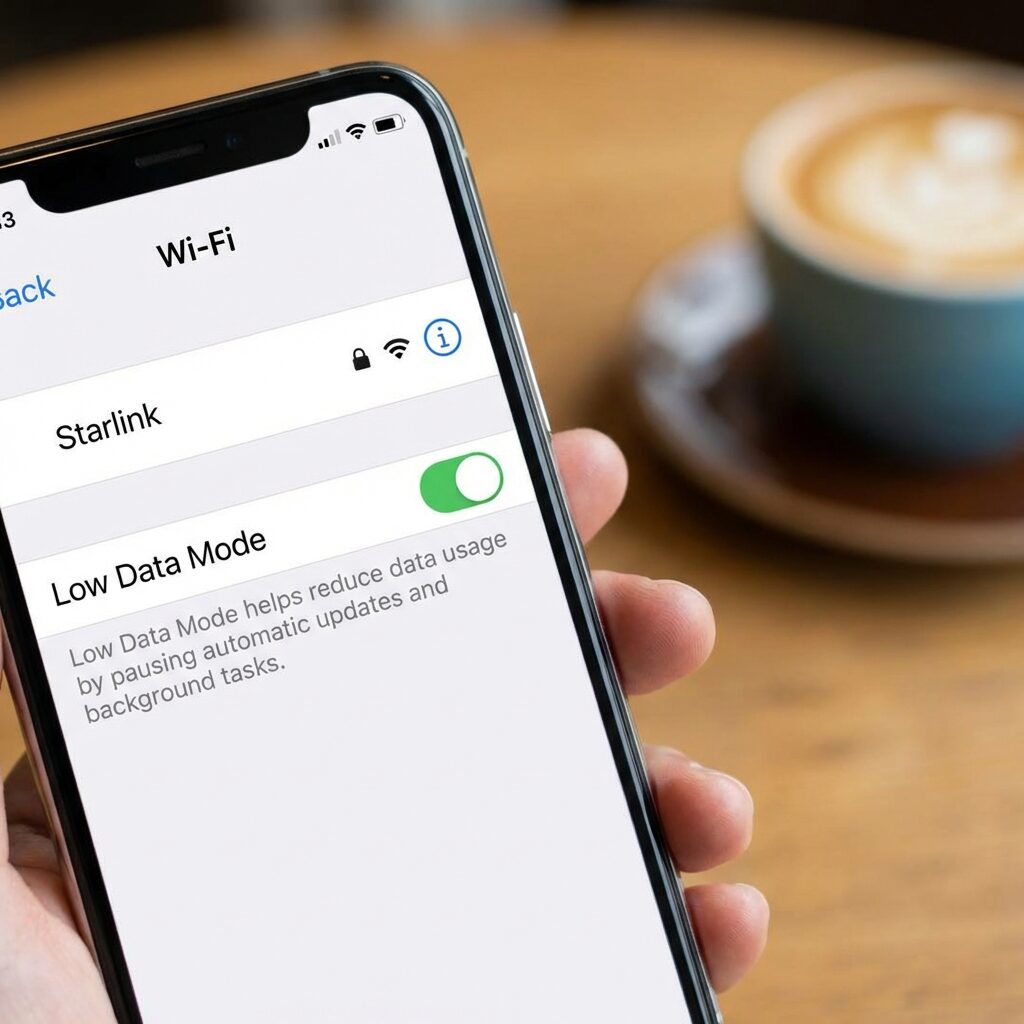
- Open Settings and tap Wi-Fi.
- Tap the Info button next to your Starlink network.
- Turn on Low Data Mode.
The setting is saved for that network and syncs to your other Apple devices through iCloud, per Apple Support. Low Data Mode turns off automatic downloads and backups, pauses iCloud Photos updates, and turns off Background App Refresh.
Mac
Open System Settings, click Wi-Fi, click Details next to your Starlink network, and turn on Low Data Mode. Apple says the setting reduces data usage over that Wi-Fi network, per the Mac User Guide.
Windows 11
Open Settings, then Network & internet, then Wi-Fi. Select your connected Starlink network and turn on Metered connection, per Microsoft Support. The setting applies to that network only. On a metered network, Microsoft Store app downloads might pause and offline files might not sync. OneDrive also pauses sync on a metered network.
Android
Some Starlink data guides tell Android users to turn on Data Saver. That advice does not help on Starlink Wi-Fi. Google Pixel Help describes Data Saver this way: “This mode lets most apps and services get background data only via Wi-Fi.” Data Saver limits mobile data, so it leaves your Starlink Wi-Fi alone. Mark the Wi-Fi network as metered instead.
- Open Settings, then Network & internet, then Internet.
- Tap your connected Starlink Wi-Fi network.
- Tap Network usage and choose Treat as metered.
Menu names vary by phone and Android version, per Android Help.
Streaming and Video Call Settings That Cut the Most Data
Netflix Medium quality uses up to 0.7 GB per hour, compared with up to 3 GB per hour for High quality in HD. Streaming apps on Auto pick the highest quality your connection allows, per Netflix Help, so a manual setting caps the drain. The figures below are per stream or per device. Video call rows are calculated upper bounds from vendor bandwidth specs, not measured use. This guide uses 1 GB = 1,000 MB, and Mbps means megabits per second.
| Activity | Setting | Data per hour | Source | Use case |
|---|---|---|---|---|
| Netflix (web) | Low | Up to 0.3 GB | Netflix Help | Background viewing on a 100GB plan |
| Netflix (web) | Medium | Up to 0.7 GB | Netflix Help | Everyday viewing on a capped plan |
| Netflix (web) | High, standard definition (SD) | Up to 1 GB | Netflix Help | Larger screens when data allows |
| Netflix (web) | High, HD | Up to 3 GB | Netflix Help | Occasional viewing on 300GB or Unlimited |
| Netflix (web) | High, Ultra HD | Up to 7 GB | Netflix Help | Unlimited plan or campground Wi-Fi |
| Netflix mobile app | Save Data (Cellular Data Usage setting) | About 6 hours per GB | Netflix Help | Phone streaming on cellular. Use the profile Playback setting for Starlink Wi-Fi |
| Zoom, one-on-one | 720p video | About 1.1 GB (calculated from 1.2 Mbps each way) | Zoom Support | Short check-in calls |
| Zoom, group | 720p video | About 2 GB (calculated from 2.6 Mbps up, 1.8 Mbps down) | Zoom Support | Group calls you can keep short |
| Microsoft Teams meeting | Minimum, up to 240p | About 0.16 GB (calculated) | Microsoft Learn | Calls where video quality does not matter |
| Microsoft Teams meeting | Recommended, up to 1080p | About 2.9 GB (calculated) | Microsoft Learn | Calls on 300GB or Unlimited |
| Google Meet | 720p video | Up to about 1.5 GB (calculated) | Google Workspace | Calls where video is needed |
| Google Meet | Audio only | About 0.09 GB (calculated) | Google Workspace | Any call on a 100GB plan |
| YouTube | Data saver | Not published by YouTube | YouTube Help | Set on the Wi-Fi quality option |
Where to change the settings
- Netflix, any device: Sign in on the Netflix website, go to Account, select your profile, then Playback settings, and choose Low or Medium, per Netflix Help. Netflix saves the setting per profile.
- Netflix app on a phone: The Save Data option sits under App Settings, Video Playback, Cellular Data Usage, and Netflix lists it as a mobile data setting. Netflix does not say it limits streaming over Wi-Fi, so set the profile Playback setting above for Starlink Wi-Fi. Save Data runs about 6 hours per GB on cellular. Avoid Maximum Data, which can use 1 GB per 20 minutes or more.
- YouTube: Video quality has separate settings for mobile networks and Wi-Fi, per YouTube Help. Set the Wi-Fi option to Data saver, which gives lower picture quality.
- Zoom, Teams and Meet: Turn off your camera or join by audio when video is not needed. Meet audio uses 100 Kbps (kilobits per second) each way, per Google Workspace.
Meet also adjusts on its own. Google Workspace states, “If your network doesn’t have enough bandwidth, Meet lowers the video definition.” For choosing a streaming service on the road, see streaming options for RVers.
Stop Big Automatic Downloads Before You Boondock
Turning off automatic updates stops large downloads from landing mid-cycle on your Starlink plan. System updates for phones, computers and consoles are ordinary downloads that count toward your Roam data. The menu paths below are current for iOS, Windows 11 and PS5 as of September 2026 and can change with software versions. Apple, Microsoft and Sony each document the setting, starting with Apple Support for iPhone.
- iPhone system updates: Settings, General, Software Update, Automatic Updates. Turn off Automatically Install. Automatically Download appears after that, and you can turn it off too.
- iPhone app updates: Settings, Apps, App Store, then turn off App Updates, per Apple Support. On a Mac, open App Store, Settings, and turn off Automatic Updates.
- Windows: A metered connection limits Windows Update to priority updates, per Microsoft Support. Use the Windows 11 steps in the device settings section above.
- PS5 system software: Settings, System, System Software, System Software Update and Settings. Turn off Download Update Files Automatically and Install Update Files Automatically, per PlayStation Support.
- PS5 games: Settings, Saved Data and Game/App Settings, Automatic Updates, then turn off Auto-Download.
- Xbox: Check your console’s update settings before you rely on Starlink data.
Install updates on campground or home Wi-Fi before a Starlink-only stretch of boondocking (camping without hookups).
Data Budget Math: A Worked 30-Day Example
Two hours of HD Netflix a day can use up to 180 GB in a 30-day cycle. That total multiplies the up to 3 GB per hour HD figure from Netflix Help by 60 hours. This is a hypothetical worked example, not the authors’ own usage, and it covers one stream on one device. Swap in your own hours to see how your plan holds up.
- Netflix High quality in HD, 2 hours a day for 30 days: up to 180 GB.
- Netflix Medium, same 60 hours: up to 42 GB.
- Zoom group calls at 720p, 20 hours in the cycle: about 40 GB, calculated from Zoom’s bandwidth figures. Real use is often lower.
The HD mix totals up to about 220 GB, which passes 100GB before any background use. The Medium mix totals about 82 GB, which leaves about 18 GB of a 100GB plan for everything else. Add background use you can measure in the Starlink app. The same viewing hours fit a 100GB plan at Medium quality and call for Roam 300GB or more at HD.
Is It Time to Change Plans? 100GB vs 300GB vs Unlimited
A bigger Roam plan helps only when your usage still reaches the cap after device fixes. Device settings cost nothing, and moving from Roam 100GB to Roam 300GB adds $25 a month at current prices. The prices below are US Roam prices as of September 2026, per Starlink’s Roam page, and they can change. Check your data usage in the Starlink app for a full cycle after the fixes, then decide.
| Plan | Price as of Sept. 2026 | After the cap | Travel scope | Choose when |
|---|---|---|---|---|
| Roam 100GB | From $55/mo | Unlimited low-speed data for the rest of the cycle | Home country. US and Canada listed for US customers | The Starlink app shows you finish the cycle under 100GB after device fixes |
| Roam 300GB | $80/mo | Unlimited low-speed data for the rest of the cycle | Home country. US and Canada listed for US customers | You still reach 100GB before the cycle ends after device fixes |
| Roam Unlimited | $175/mo | No cap. Speeds not guaranteed, and network management applies | 160+ countries and territories. Up to 30 consecutive days outside your registered country, per the Service Plan Descriptions | Your budget runs past 300GB, or you travel outside the US and Canada |
- Choose Roam 300GB when the Starlink app shows you reaching 100GB before the cycle ends, even after device fixes, and your worked budget lands under 300GB.
- Choose Roam Unlimited when your worked budget runs past 300GB in a cycle, or you travel outside the US and Canada.
- Choose cellular or campground Wi-Fi when you have a heavy streaming day and a usable signal. A cellular plan or campground Wi-Fi may carry the load and save Starlink data.
If you have usable cellular coverage at camp, you may not need Starlink data for streaming at all. To weigh the options, compare Starlink with cellular options for your rig. Internet is one line in the monthly costs of RV life.
If you park for the off-season, Standby Mode pauses Roam for a small monthly fee, per Starlink’s Roam page. Starlink’s Service Plan Descriptions say Standby Mode includes unlimited low-speed data and is not intended for constant, in-motion or high-bandwidth use. Starlink may also require a fee or a plan change if you stay on Standby Mode for more than 12 consecutive months. Check the current Standby fee in your Starlink account before you pause.
Starlink’s Service Plan Descriptions say Roam plans are not permitted for business or enterprise use. Roam plans are for personal use per Starlink’s terms. Check the plan terms if you work on the road, and see our notes on working remotely while boondocking.
A Starlink Mini averages 25 to 40 watts, per Starlink’s Mini specification sheet. If you run it off-grid, read our guide to sizing solar to run your Starlink.
Existing customers change plans in their Starlink account. Current plan prices are on Starlink’s Roam page.
If you are not a Starlink customer yet and a capped Roam plan fits your travel after running these numbers, check current Starlink Roam availability and the referral offer. New Starlink customers who sign up for a Roam plan on starlink.com through a referral link get one month of free service, credited to the second month’s bill, if they stay subscribed for at least two months. Starlink sets the eligibility rules and can change them. Existing and returning Starlink customers are not eligible.
Referral disclosure: If you sign up for Starlink through our referral link, you may receive Starlink’s current referral benefit, and Boondock or Bust may receive a referral reward from Starlink. We are not affiliated with Starlink. Eligibility and terms are set by Starlink and can change.
Starlink Roam Data Usage FAQ
Why is my Starlink data going so fast?
The usual causes are streaming on Auto or high quality, high-definition video calls, automatic updates and photo backup. Your devices treat Starlink Wi-Fi like unlimited home internet unless you mark the network as metered or turn on Low Data Mode. Starlink also covers the topic in its Data Usage Best Practices help article.
What happens when I use up my Starlink Roam 100GB data?
Roam 100GB switches to unlimited low-speed data for the rest of your billing cycle, per Starlink’s Service Plan Descriptions. Starlink says low-speed data is not suitable for streaming, video calls or gaming. Unused data does not roll over. Starlink says it notifies you when you reach 80% and 100% of your monthly high-speed Roam data, and that per-GB data is no longer sold on Roam plans except for Ocean Mode, per a Starlink support article.
Do Starlink software updates count against my data?
Yes. Updates for your phones, laptops and consoles are ordinary downloads over your Starlink connection, so they count. Starlink also says your router may use about 1 to 5 GB a month for its own software updates and health monitoring, and that this counts toward your total, per Starlink Support. The Starlink router does not give a per-device usage breakdown. Open the Network screen in the Starlink app to look for devices you do not recognize, and check your total after a big device update.
How do I turn on Low Data Mode for Starlink on iPhone?
Open Settings, tap Wi-Fi, tap the Info button next to your Starlink network, and turn on Low Data Mode. The setting applies to that network only. Apple Support says Low Data Mode pauses iCloud Photos updates, turns off Background App Refresh, and turns off automatic downloads and backups.
Does Android Data Saver work on Starlink Wi-Fi?
No. Google Pixel Help says Data Saver lets most apps get background data only via Wi-Fi, so it limits mobile data, not your Starlink Wi-Fi. Instead, open Settings, then Network & internet, Internet, your Starlink network, Network usage, and choose Treat as metered. Menu names vary by phone maker.
How much data does a Zoom call use per hour?
A one-on-one Zoom call at 720p uses about 1.1 GB per hour, and a group call at 720p uses about 2 GB. Both figures are calculated from Zoom’s published bandwidth, so real use is often lower. An audio-only Google Meet call uses about 0.09 GB per hour by the same math.
Do speed tests use Starlink data?
A speed test works by moving data over your connection. Starlink says each speed test may use up to about 1 GB or more, depending on your speeds, and that speed test data counts toward your plan, per Starlink Support. Run tests only when you troubleshoot a problem. Watch your usage in the Starlink app instead of testing daily.
Should I switch from Roam 100GB to 300GB or Unlimited?
Switch only if the Starlink app still shows you reaching 100GB before your cycle ends after device fixes. As of September 2026, Roam 300GB costs $80 a month and Roam Unlimited costs $175, per Starlink’s Roam page. Unlimited has no cap, but speeds are not guaranteed. Change plans in your Starlink account.
Can I pause Starlink Roam when I’m not traveling?
Yes. Standby Mode pauses Roam for a small monthly fee, per Starlink’s Roam page. Standby includes unlimited low-speed data and is not intended for in-motion use, per Starlink’s Service Plan Descriptions. Starlink’s Roam page does not list the Standby fee, so confirm the current amount in your Starlink account.
About the Authors
Chuck and Cindy Price travel in a 2018 Hymer Aktiv Class B and use a Starlink Mini on the Starlink Roam plan. Chuck has more than 35 years of RV camping experience.
Sources
- Apple Support. Use Low Data Mode on your iPhone or iPad. Accessed September 25, 2026.
- Apple Support. Mac User Guide: Low Data Mode on Wi-Fi. Accessed September 25, 2026.
- Apple Support. Update your iPhone or iPad. Accessed September 25, 2026.
- Apple Support. Turn automatic app updates on or off. Accessed September 25, 2026.
- Google. Android Help: Manage data usage and metered Wi-Fi. Accessed September 25, 2026.
- Google. Pixel Phone Help: Data Saver. Accessed September 25, 2026.
- Google. Google Photos Help: Back up photos and videos. Accessed September 25, 2026.
- Google. Workspace: Prepare your network for Meet. Accessed September 25, 2026.
- Google. YouTube Help: Change video quality. Accessed September 25, 2026.
- Microsoft Learn. Prepare your network for Teams. Accessed September 25, 2026.
- Microsoft Support. Metered connections in Windows. Accessed September 25, 2026.
- Microsoft Support. How to pause and resume OneDrive sync. Accessed September 25, 2026.
- Netflix Help Center. How to control how much data Netflix uses. Accessed September 25, 2026.
- PlayStation Support. Automatic updates on PlayStation. Accessed September 25, 2026.
- RV Mobile Internet. Starlink doubles data on Roam plan, introducing Roam 100GB. Accessed September 25, 2026.
- Starlink Support. Data Usage Best Practices. Retrieved October 4, 2026.
- Starlink Support. Roam 50GB is now Roam 100GB. Retrieved October 4, 2026.
- Starlink Support. What are the Roam service plans? Retrieved October 4, 2026.
- Starlink. Roam plans and pricing (US). Retrieved October 4, 2026.
- Starlink. Service Plan Descriptions (US). Retrieved October 4, 2026.
- Starlink. Starlink Mini specification sheet. Retrieved October 4, 2026.
- Zoom Support. Zoom system requirements: bandwidth. Accessed September 25, 2026.
Starlink plans, prices and device menus change. Confirm current plan details at starlink.com and your device maker’s support site before you change settings or plans.


